Don't just adjust the settings on your TV. Your HDMI port settings should also be tweaked.
By Roger Fingas Nov. 10, 2026 9:15 am EST Wongsakorn 2468/Shutterstock Add Engadget on Google: Preferred Source Google Discover
Most smart TVs aren't optimized for home viewing out of the box. That might sound strange, given that home audiences are usually the main target. Often, though, TVs are given overly conservative default settings, or else they're set to modes that might catch your eye in the store but actively sabotage image quality. There's a reason why Filmmaker Mode had to be invented.
This extends right down to HDMI ports. You'd think ports wouldn't need settings at all, what with the notion of plug-and-play. But they do exist, and the truth is that if you've never changed them, your TV and its connected devices probably haven't been operating at their full potential.
Typically, you only need to turn on a setting called Enhanced for each of your inputs. TV makers do put their own spin on matters, though, so keep your eyes open. In fact, it might be worth setting aside 15 minutes just to check out all the menu options to improve your 4k TV's picture quality.
Change these HDMI settings on your TV right away
 s880/Shutterstock
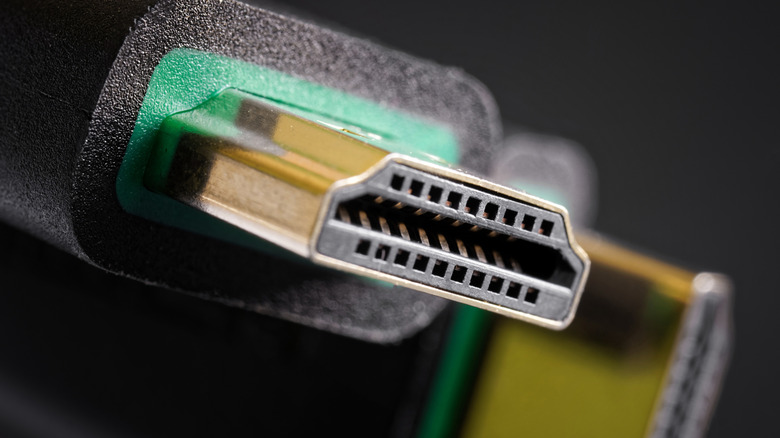
HDMI inputs frequently default to a "standard" mode intended to maximize compatibility with anything you might plug in. In theory, this sounds like a great idea. However, I've never once encountered a compatibility problem, and the tradeoff is a bottleneck on your most advanced hardware, such as game consoles and Blu-ray players. It's probably high time TV makers take the opposite approach.
In the interim, you can fix this on many TVs (such as Google-based Sony and Hisense models) by locating HDMI input options and flipping each input to Enhanced, or some variation of that label. Effectively what you're doing is unlocking the full bandwidth of each port, which is likely necessary to run features like Dolby Vision or refresh rates over 60Hz. You'd think those would be a given in 2026, as some TVs now support Dolby Vision 2, HDR10+ Advanced or refresh rates up to 240Hz (like Samsung's Frame Pro and OLED TVs).
It gets even more confusing. Some TVs may offer multiple Enhanced tiers, such as one for HDR and another for those high refresh rates. If that's the case, you'll have to prioritize based on what you have connected. PCs and consoles should automatically be assigned the best refresh rates (including Variable Refresh Rate sync), but media streamers and Blu-ray players simply need HDR, since they're unlikely to push past 60Hz anyway.
Complicating matters, here's color depth
 serhatctk/Shutterstock
TVs from LG, Sony, Samsung and others may surface a feature known as HDMI Deep Color. Introduced alongside HDMI 1.3, this simply extends color depth to the levels needed for HDR. Realistically, no consumer TV can take advantage of anything more than 10-bit color. That's fine, though, since it provides around 1.07 billion shades — way more than the human eye can consciously distinguish, allowing for extremely fine gradations.
Deep Color should, ideally, flip on automatically whenever you plug in a compatible device. If you suspect something is wrong, you should typically be able to force it on. You can do this on an LG TV by going to Settings > General > External Devices > HDMI settings > HDMI Deep Color. If you're offered a choice of bits, feel free to choose anything over 8-bit, which is just SDR (Standard Dynamic Range).
If you're connecting a PC or console, keep an eye out for chroma subsampling options. This technology compresses color data for the sake of efficiency and usually isn't a big deal if you're just watching a movie or TV show. With PCs and consoles, however, switching to uncompressed 4:4:4 can go a long way towards making text more legible.