It's only ever just a few taps away.
By Adnan Ahmed Nov. 14, 2026 1:15 pm EST Adnan Ahmed for Engadget Add Engadget on Google: Preferred Source Google Discover
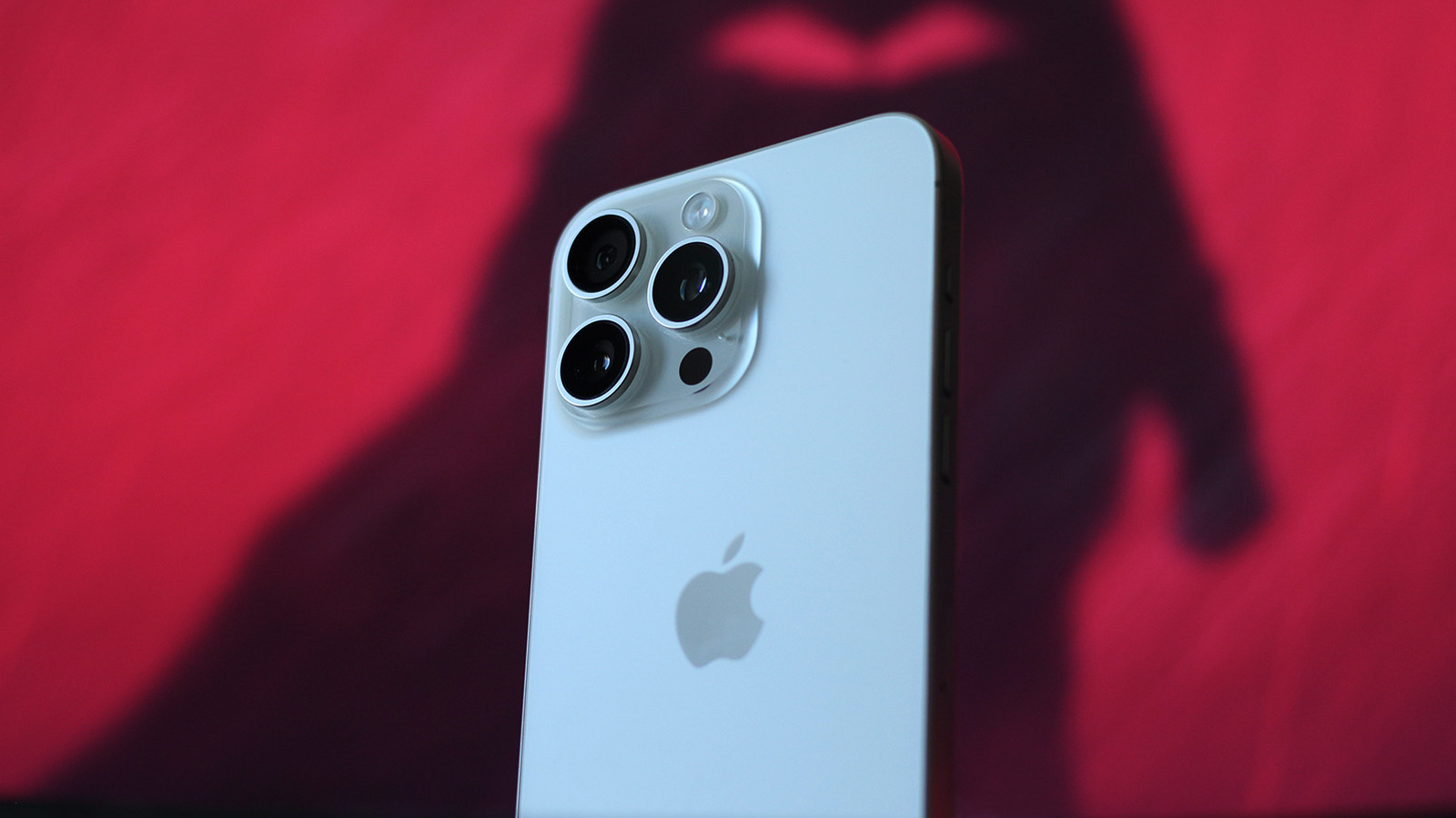
Apple's products may not always offer the best bang for your buck — the company still sells an iPhone with a 60Hz display for $700, for example — but they often make up for it with meticulously designed hardware and well-thought-out ecosystem features. iPhones also tend to last a long time, with Apple's commitment to long-term software support a major factor. Take the iPhone 11, for instance. Released in 2019, it can still run the latest version of iOS more than seven years later. If you're rocking a similarly aged iPhone and want to check the OS version you're running, open Settings and navigate to General > About > iOS Version.
Your iPhone should notify you when a new iOS version becomes available, and installation takes only a few minutes once the update finishes downloading. To check for updates manually, navigate to Settings > General > Software Update. This page also shows the current software version and will display a Download and Install button if an update is available. If a major iOS release, like iOS 27, is available, you'll see it in a separate Also Available section at the bottom.
Once you've downloaded the update, tap Update Now, enter your passcode and accept the terms and conditions. Your iPhone will reboot automatically to finish installing the update. You can also configure your iPhone to download and install iOS updates automatically. Tap on Automatic Updates and turn the Automatically Install toggle on. Your iPhone will handle software updates on its own when it's connected to Wi-Fi and has enough battery left. For manual updates, your battery needs to have at least 20 percent charge.
Update your iPhone using a computer
 Adnan Ahmed for Engadget
Update sizes vary depending on the type of release. Security updates and hotfixes may only be a couple hundred megabytes, while major iOS upgrades can be several gigabytes, so you should connect to a fast Wi-Fi network if you're downloading the latter. If your Wi-Fi is spotty or unreliable, you can also update to the latest iOS version via a computer.
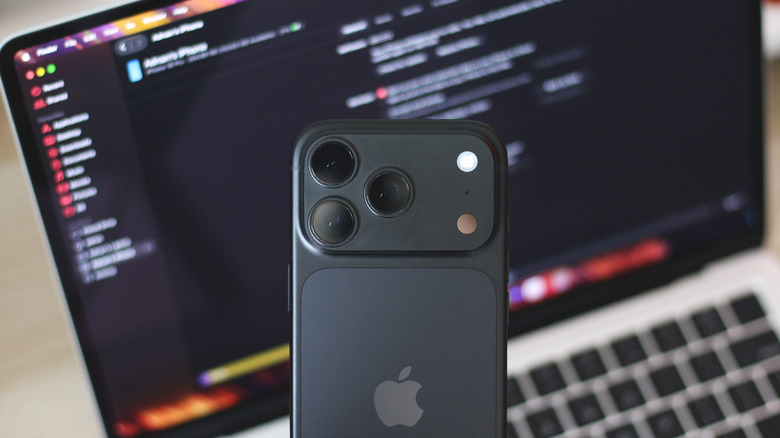
Start by connecting your iPhone to your computer with a cable. You might need to tap Trust on your iPhone's screen if it's your first time connecting it to that computer. If you're using a Mac running macOS 10.15 or newer, open Finder and select your iPhone from the sidebar. In the General tab, click on Check for Update, then confirm by clicking on Update. If you have a Windows PC, you can install the Apple Devices app to update your iPhone. You can still use iTunes on an older Mac or Windows computer, too.
Though iOS updates rarely have catastrophic issues, Apple recommends backing up your iPhone before installing software updates. On your iPhone, open Settings, tap on your name at the top, navigate to iCloud > iCloud Backup and Back Up Now. If you're out of iCloud storage, you can back up your iPhone to a Mac or Windows PC using Finder, iTunes or the Apple Devices app.
Here's why you should keep your iPhone updated
 Adnan Ahmed for Engadget
It's a running joke in the tech community that Apple keeps releasing the same iPhone every year. iOS also refrains from making drastic changes from one generation to the next, although iOS 26's Liquid Glass overhaul was pretty big. iOS 27 doesn't look too different from its predecessor, but it packs significantly better performance. This is especially noticeable on older iPhone models: My iPhone 15 Pro was very sluggish on iOS 26, but iOS 27 brought major stability and performance improvements.
Both iOS 18 and iOS 26 were infamous for being buggy and not delivering on Apple's promises about a smarter Siri, so it's understandable if you've held back on updating your older iPhone. iOS 27, though, is one of the more polished releases, likely because it prioritizes stability over introducing flashy new features. iOS 26 was particularly demanding on older iPhones, but iOS 27 improves the experience with a new optimized CPU scheduler and can launch apps up to 30 percent faster, according to Apple.
Siri AI is also finally here, and users with Apple Intelligence-powered iPhones can join the beta waitlist by heading to Settings > Siri. It's still far from the ultra-capable AI assistant that Apple originally hinted at during its WWDC 2024 event, but it's noticeably better at fulfilling requests and handling more complex, conversational commands. Of course, software updates also patch security issues and vulnerabilities, which is just as important, if not more so, than any new features.