It's an annoying problem but one that can be easily fixed
By Roger Fingas Nov. 14, 2026 1:30 pm EST Mr.Bije/Shutterstock Add Engadget on Google: Preferred Source Google Discover
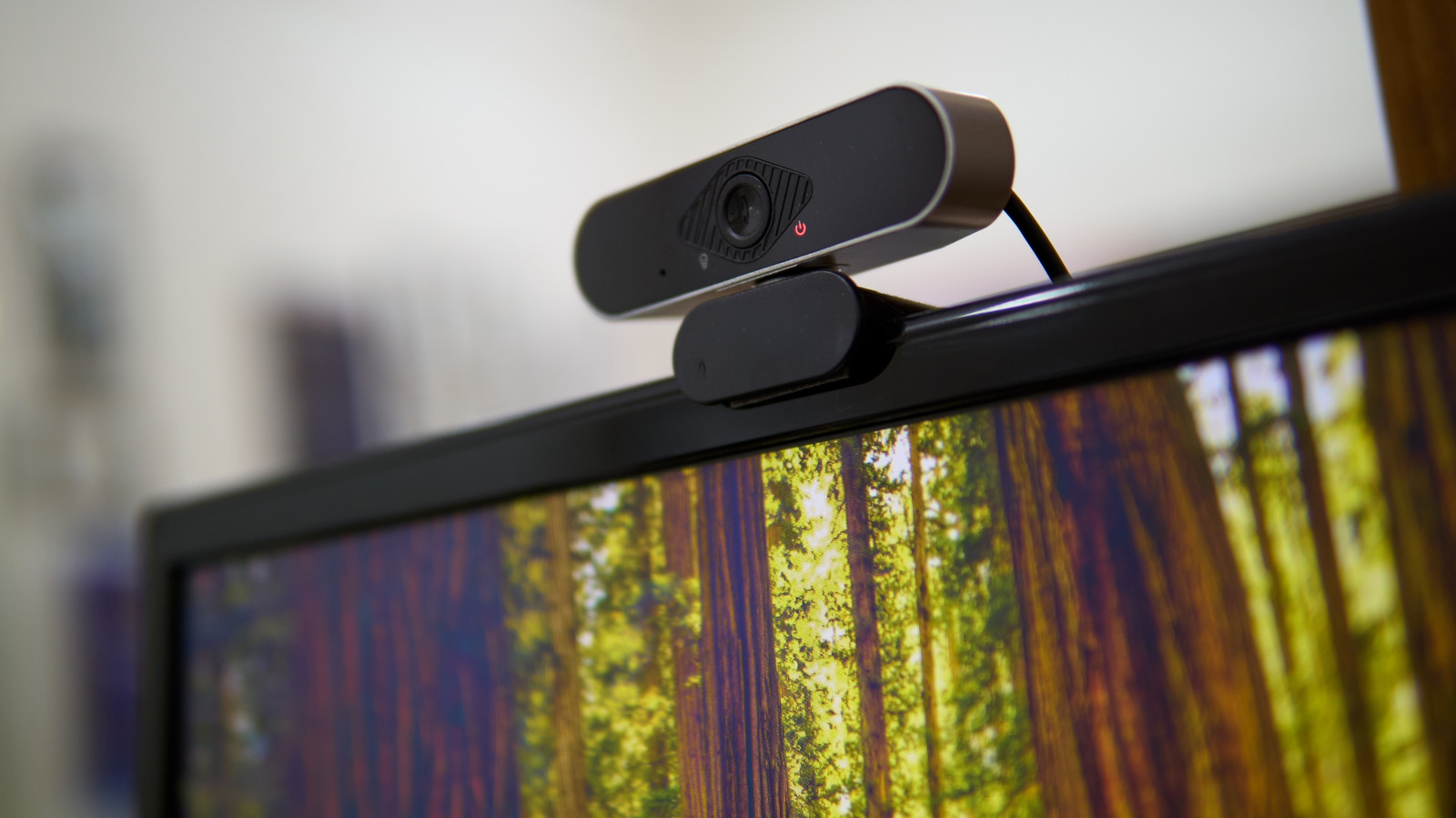
The webcams on our PCs are essential pieces of equipment. There's a chance you conducted an interview for your most recent job with one, and even major news outlets regularly talk to experts or pundits this way instead of inviting them down to the studio. It helps that cams have gone from choppy and muffled feeds to something closer to broadcast quality, and of course professionals often use dedicated equipment.
Everyone runs into problems, though, and we're here to tackle them as efficiently as possible. Often the fixes are simple, maybe even simpler than you'd expect. But there can be more complicated issues at play, for instance requiring driver updates.
If you're on the verge of an important call or meeting, we can probably get you back on track in a matter of minutes. But whenever possible, we'd recommend testing and adjusting gear during downtime, because the goal is to get audio and video just right, rather than merely working.
Troubleshooting the common causes of camera and mic problems
 Pekic/Getty Images
This might almost feel insulting, but your first step should be to verify that your equipment isn't physically disabled. Some computers have lens blinds and/or mute switches, and it's easy to forget about them if you don't take that many calls. If you're using external accessories, check their own cables, switches and buttons.
Your next step should be to make sure Windows or macOS has the proper input(s) selected, and that mic volume is high enough. In Windows 11, you can check your camera by heading to Settings > Bluetooth & devices > Camera, and mic input via Settings > System > Sound. As a rule, err on the side of mic volume being high, meaning 80 to 100 percent — I've found that even with headset mics, low volume is usually the culprit for people being unable to hear you. Macs use app-based camera controls, but you can adjust mic input through Apple menu > System Settings > Sound > Input.
Speaking of apps, it's critical that apps have permission to use your camera and/or mic. Windows 11 lets you toggle these on a per-app basis by going to Settings > Privacy & security > Camera or Microphone. Equivalent menus are available on a Mac by way of Apple menu > System Settings > Security & Privacy. If you're having trouble after granting an app permission, try relaunching the app in question.
In-app settings and more drastic measures
 Pool/Getty Images
It's also vital to make sure your inputs and volume are properly selected within the settings menus of the apps you're using. And even when they are configured properly, some meeting apps may nevertheless default to leaving one or more inputs disabled. With Zoom, for example, be sure to doublecheck that camera and/or mic input is allowed in the prompt that appears before you join a meeting.
If you're still encountering trouble, it may be time to check for software updates using Settings > Windows Update or, on Macs, Apple menu > System Settings > General > Software Update. Note that while Windows Update breaks out driver releases, these are bundled into new versions of macOS, so you won't necessarily be able to tell what's changed. Both Mac and Windows users should update to the latest versions of any relevant communications apps and features.
On the Windows side, you may want to update your GPU drivers via AMD or NVIDIA's software if you're encountering weird or missing video output, although this is more likely to affect how things look on your end, not someone else's. As a last-ditch measure, open Device Manager by searching for it in the taskbar, then expand the Cameras or Audio inputs and outputs sections to find your hardware. If you right-click on a device, select Properties and click on the Driver tab, you'll get an option to uninstall. Windows should automatically reinstall drivers once you reboot. If it doesn't, you may have to manually identify the correct drivers via a manufacturer's website and download them.