A remote that won't cooperate can put your streaming plans on hold. Here's how to work out what's wrong and get back to the content you love.
By Roger Fingas Nov. 23, 2026 11:15 am EST rylansamazingphotography/Shutterstock Add Engadget on Google: Preferred Source Google Discover
Regardless of what you think of Fox's takeover, Roku is still an undeniable force in smart TVs. The company's products are an easy choice when looking for the best streaming devices, and of course a number of TVs now ship with Roku OS built in, most notably models from TCL and Hisense. Roku is the main game in town for brands that are not using Google TV, Fire TV or their own proprietary software.
One of the reasons for the platform's popularity is its simplicity. That said, there are times when the platform can be a little obtuse, mysterious blinking lights on the remote being a prime example. It's easy to assume that means a problem — but what, exactly?
If you're dealing with a flashing green LED on your Roku remote, the fix could be very straightforward, simply requiring fresh batteries or a recharge, depending on the model. In some circumstances, however, you may need to do more or replace your remote entirely. Hopefully you've already got the Roku app on your phone as a backup, which can save you in a pinch when your remote is on the fritz.
How to deal with the green light on your Roku remote
 Ilze_Lucero/Shutterstock
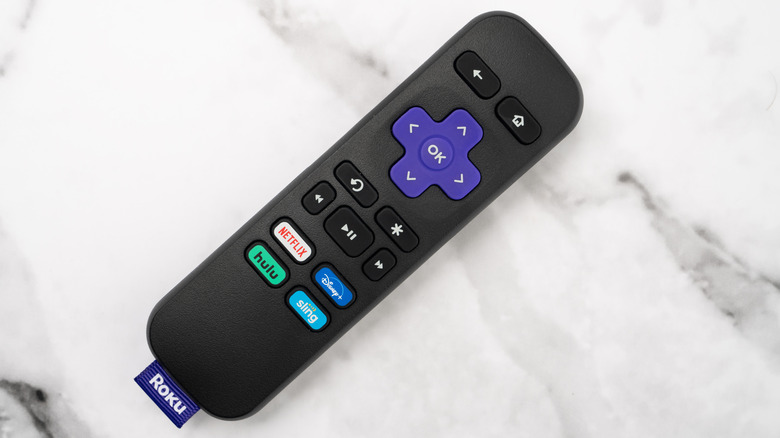
As we just suggested, one reason for the light may be that your remote's batteries are low. If that's the case, swapping in new batteries (if there's no built-in one) should quickly solve the problem. If you find this is happening too frequently, though, it may be because you're using rechargeable batteries. Alkalines are costlier in the long run — but Roku does recommend them for remotes with replaceable batteries. You can check battery levels in advance by navigating to Settings > Remotes & devices > Remotes > Your remote > About.
You'll also see this light if you're trying to set up a replacement remote. Using your old one or the Roku app, you may need to head to Settings > Remotes & devices > Add devices > Remote > Continue to complete the process. You'll definitely see green flashing if you trigger a remote's physical pairing controls, which is done by holding a dedicated button or the Back and Home buttons simultaneously for five seconds.
There's no need to be worried unless the light is flashing rapidly after re-pairing. If that's going on, it's a sign that your remote is probably broken and needs to be replaced. Note that you can also buy third-party remotes; sticking with one of Roku's official options should get you better support and features. Whatever you choose, verify that it's going to be compatible with your particular TV or streamer.
What to do if you're still having problems
 Charles-McClintock Wilson/Shutterstock
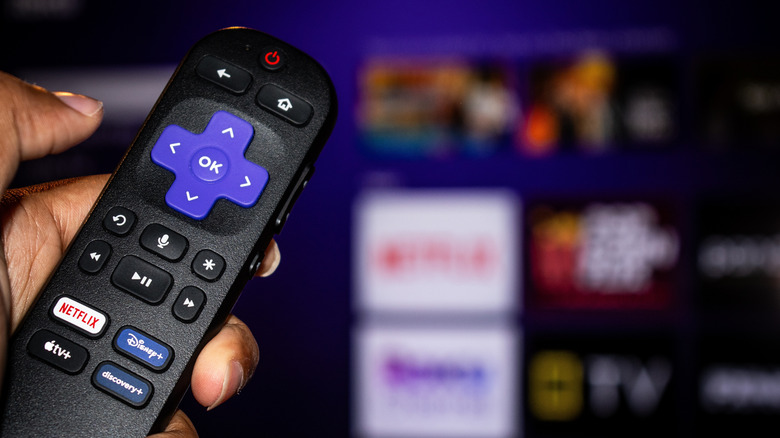
If you've run through all of the above steps short of replacing your remote, one remaining option is to restart it. If it uses replaceable batteries, take them out, then press any two buttons before reinserting the batteries, negative sides first. If it uses a built-in battery, hold down its physical pairing controls (see the last section) for 20 seconds.
At this point, there's not much else you can try short of clearing the cache on your Roku or updating or rebooting your Roku device, or you could learn how to reset your Roku. Be warned that if you try a reset, you'll have to reconfigure everything as if it were right out of the box. It's also unlikely to solve a green light issue, since as we've established, that's normally related to battery levels or pairing, not buggy software.
If worst comes to worst, you may be stuck using your phone for control. One pro tip, though — you don't always have to use the Roku app. If your setup supports AirPlay from iPhone or MacBook to your TV or screen mirroring on Roku with your Android phone, you can often cut to the chase with whatever audio or video it is you're trying to play.