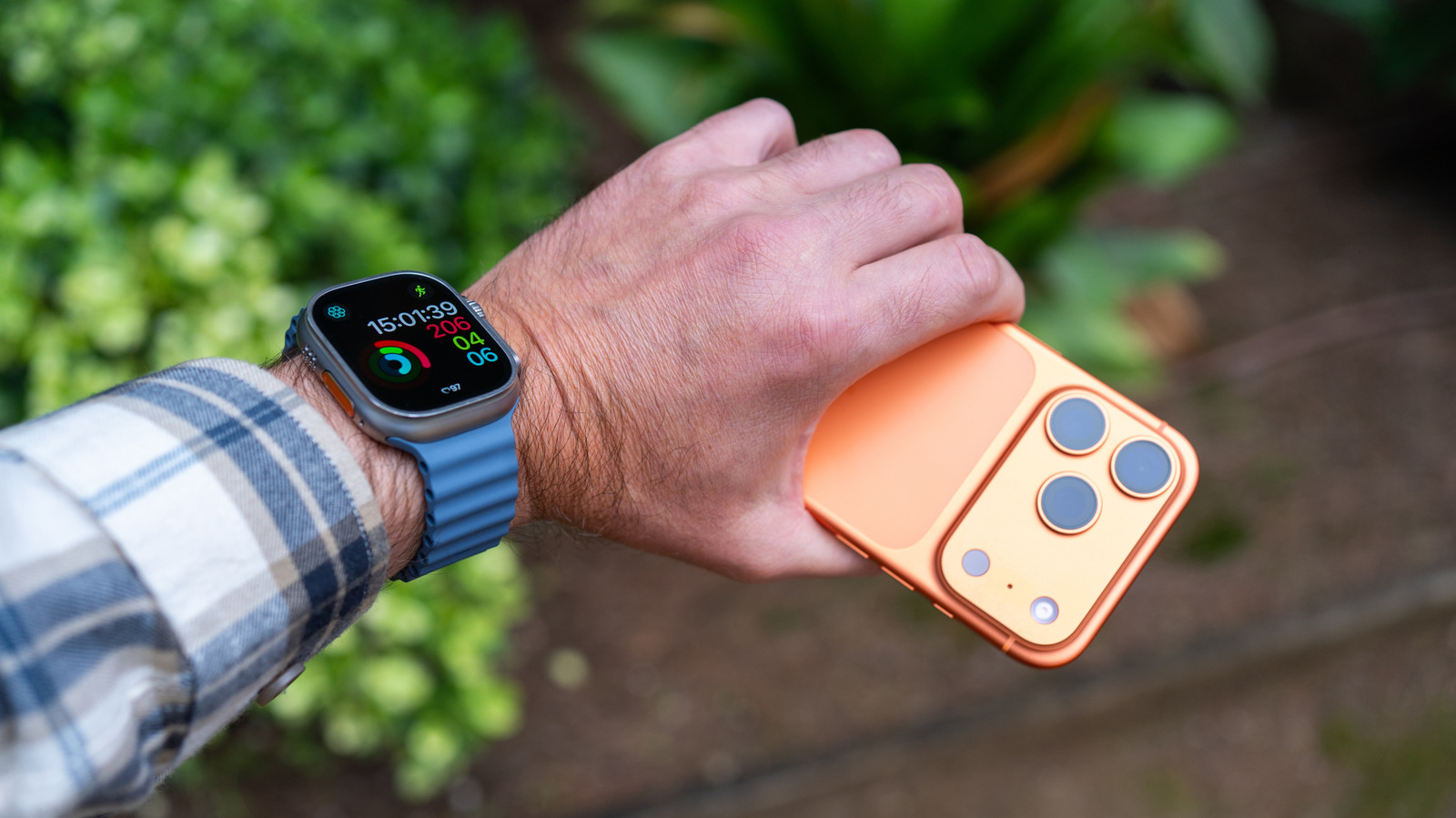
Some drivers swear by this Apple Watch feature, and it's probably already switched on.
By Roger Fingas Nov. 24, 2026 7:30 pm EST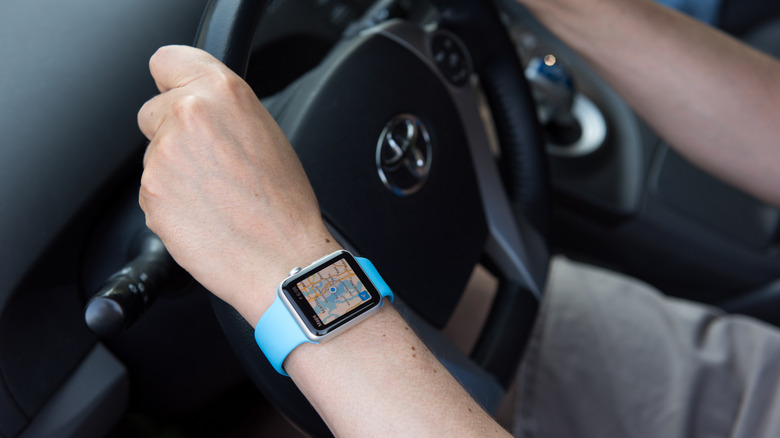 Anna Hoychuk/Shutterstock Add Engadget on Google: Preferred Source Google Discover
We may receive a commission on purchases made from links.
If you're deep into the Apple ecosystem, the choice between Apple Maps and Google Maps isn't as clear-cut as it used to be. The first was initially a disaster, even threatening the lives of Australian drivers due to inaccuracies. Since then, however, Apple has totally overhauled the app, and these days there's often little to no practical difference — speaking as someone who recently drove cross-country to move to a new city.
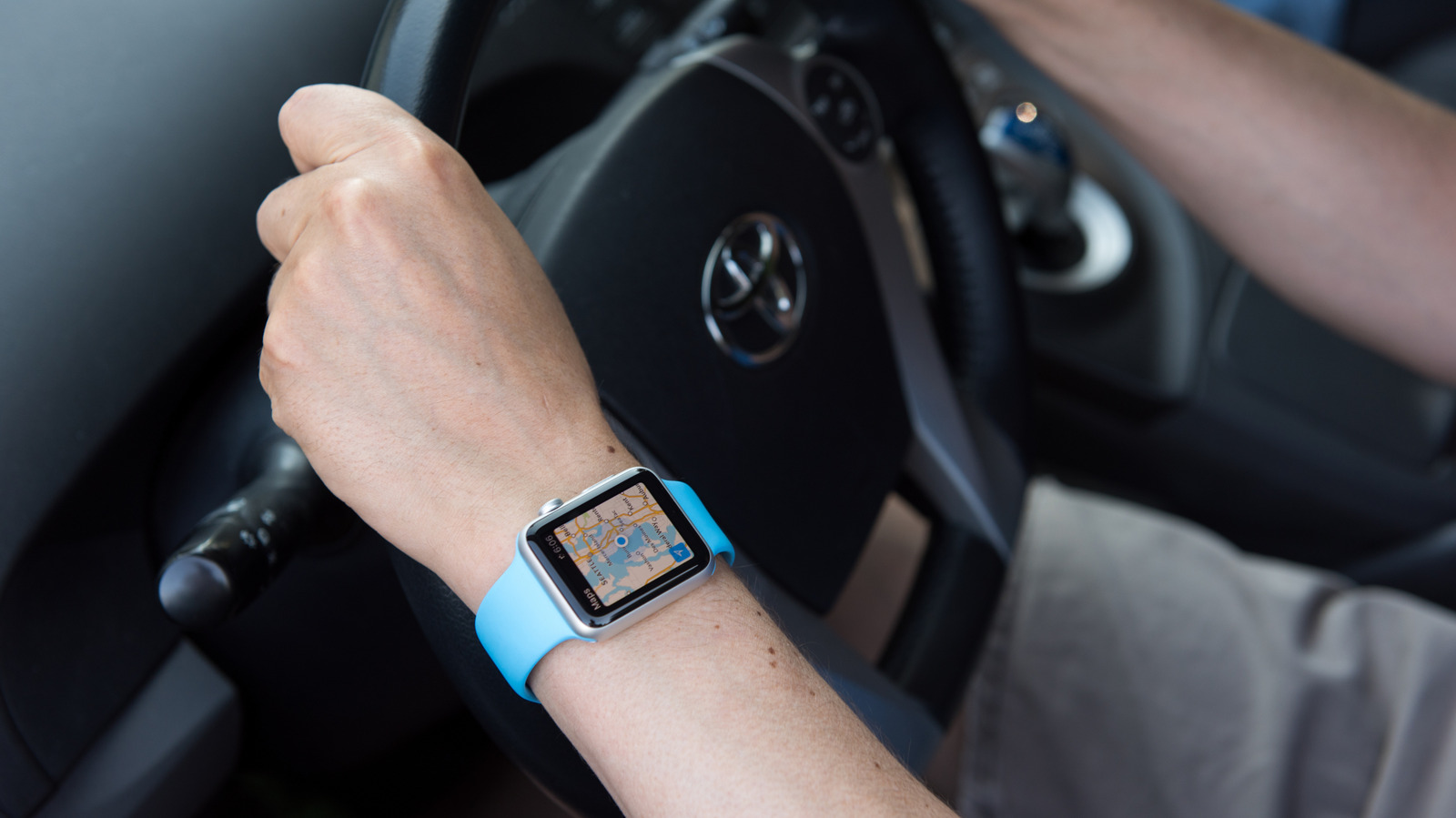
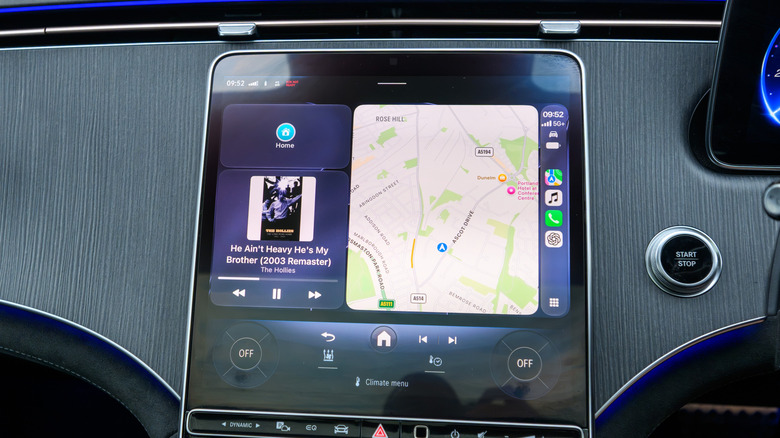
I did prefer Apple Maps for that drive for one big reason: my Apple Watch. I knew that I'd be driving for hours at a time, and it was essential to exploit anything and everything to stay alert. Linked with CarPlay, the Apple Watch offers a distinct advantage in the form of haptic feedback.
Most likely this option will already be on once you've configured your watch. But you can double-check this on your iPhone and turn off the feature if it becomes more of an annoyance than a benefit.
How your Apple Watch integrates with CarPlay
 Harry Howitt/Shutterstock
With haptic feedback active, your Apple Watch taps your wrist whenever a turn is imminent. These vibrations coincide with CarPlay's audio and visual alerts, so it's always clear what you're supposed to do. You can even choose different vibration patterns depending on whether you need to turn left or right. This makes it virtually impossible to miss a turnoff; the feature might even be lifesaving if you're prone to nodding off on long drives.
As mentioned, these alerts should be on by default. If you want to verify that or disable them, open the Watch app on your iPhone. On the My Watch tab, select Apps, then Maps. If you like, you can toggle alerts for Driving with CarPlay, plus any other driving, walking or cycling.
Whether or not you disable CarPlay integration, you'll probably want to leave cycling alerts on. Apple Maps can be handy while riding a bike or a personal electric vehicle such as a scooter or electric unicycle, but it's sometimes difficult to check your screen and ride at the same time. Audio and haptics may be your only practical cues to make a turn.
Can you drive with just your Apple Watch?
 Hadrian/Shutterstock
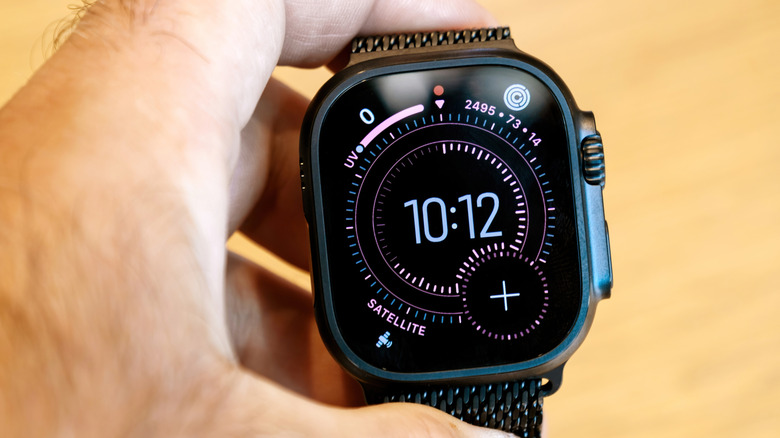
Unfortunately, it's impossible to run CarPlay exclusively from your Apple Watch. Even the Apple Watch Ultra 4 lacks the necessary horsepower, and CarPlay would be an immense battery drain regardless. Since Apple Watches also lack USB ports, they'd be restricted to wireless CarPlay at best.
You can get driving directions directly from the watchOS version of Apple Maps. You'll get the same sort of haptics we've been talking about, plus audio and visual guidance. If you don't have your iPhone, you'll need to download offline maps or use a watch with an active cellular plan. Many carriers charge extra for smartwatch coverage, even though you're rarely going to use your watch and phone data at the same time.
While you can get Google Maps on an Apple Watch, directions won't work without your iPhone. There's no watchOS option for offline maps, and Apple Watches are largely restricted to first-party apps while on cellular. These issues may be solved someday, but neither Apple nor Google seems that eager to tackle them.