A quick preview of what's to come this fall.
By Cherlynn Low June 9, 2026 12:51 pm EST Apple
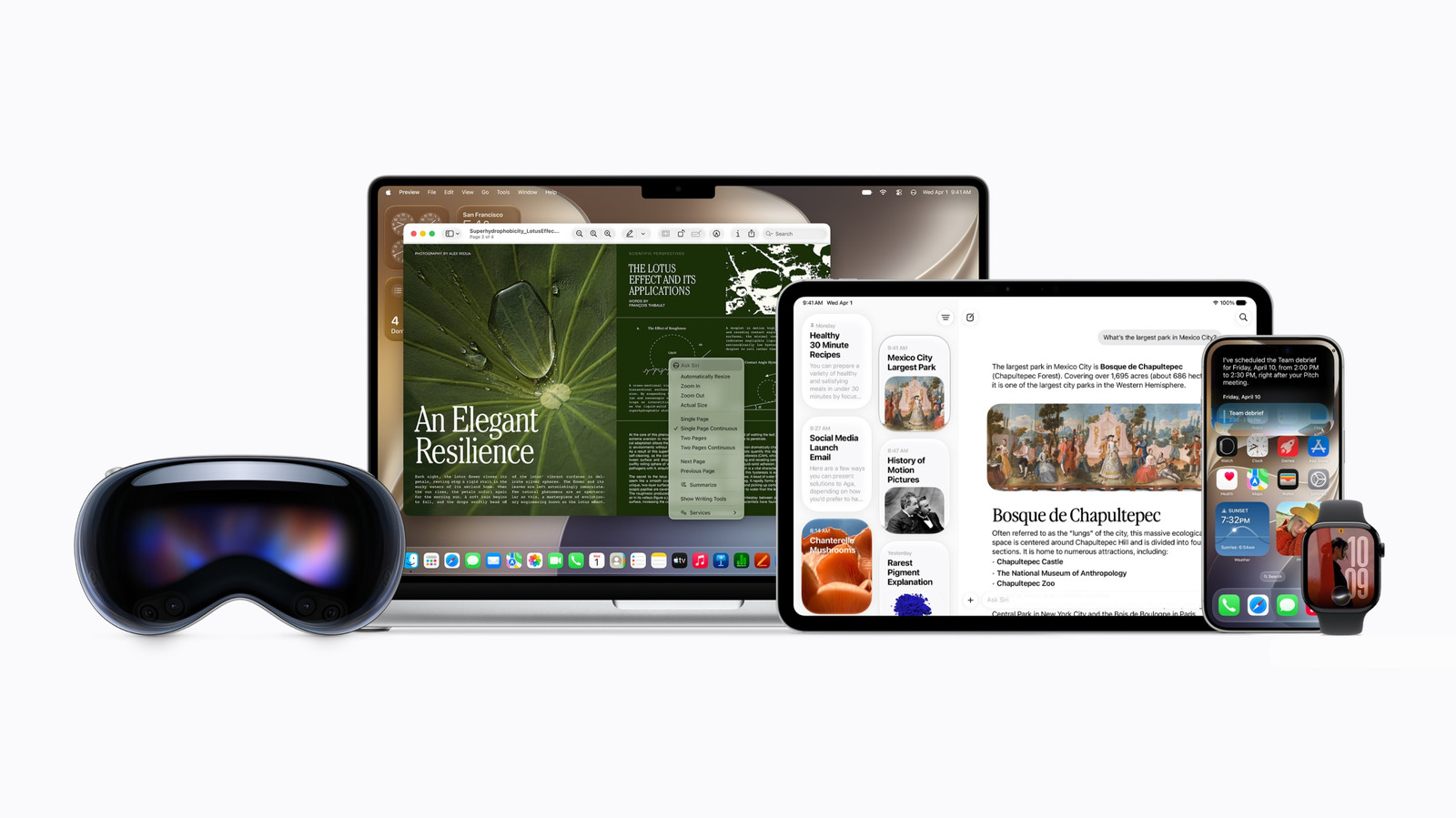
Apple The biggest news out of WWDC 2026 was, as widely rumored, the next generation of Siri. Called Siri AI, the AI-boosted assistant will be infused into lots of Apple products like the iPhone, iPad and Mac.
You can sign up to get early access to the new Siri AI to get a feel for how it behaves. But since I've already had the opportunity to check out some demos here at Apple Park after the keynote ended, I figured I'd preview it for those of you who don't want to go through the hassle of beta software.
What's changed with Siri?
 Apple
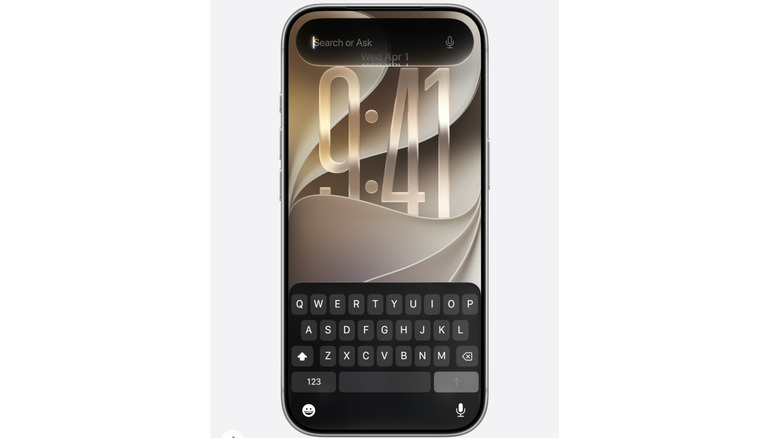
Apple One of the main differences is the new onscreen gesture you can use to invoke Siri. While methods like long-pressing the power button or saying "Hey Siri" remain, how you tap or swipe on the screen to bring up the assistant has changed. Instead of double tapping the bottom of the display to type to Siri, you now swipe down from the top center, just as you would have to pull down Spotlight search in the past.
I don't know about you but I welcome the removal of the double tap gesture, which I hardly ever used. It mostly got in the way of my endless scrolling and gaming. With this new gesture, I think of it as Apple having gotten rid of the annoyance and just turning Spotlight into a Siri-infused search bar.
Once called, you can speak out loud to Siri or type into the interface. By the way, I saw this gesture on both iPhones and iPads, and on the latter the animation is quite delightful. As I dragged my finger slowly down from the top of the screen, a black droplet oozed down and followed my finger around until I completed the swipe. Then, the Spotlight search bar appeared with the words "Search to ask" in it. A split second later, a second panel appeared below, containing suggested apps, actions and recent searches.
You'll see the interface wherever you invoke the Spotlight search, whether it be by pressing the Search button on a Magic Keyboard connected to your iPad, dragging down from the top of an iPhone screen or by using the Command-Spacebar keyboard shortcut on a Mac.
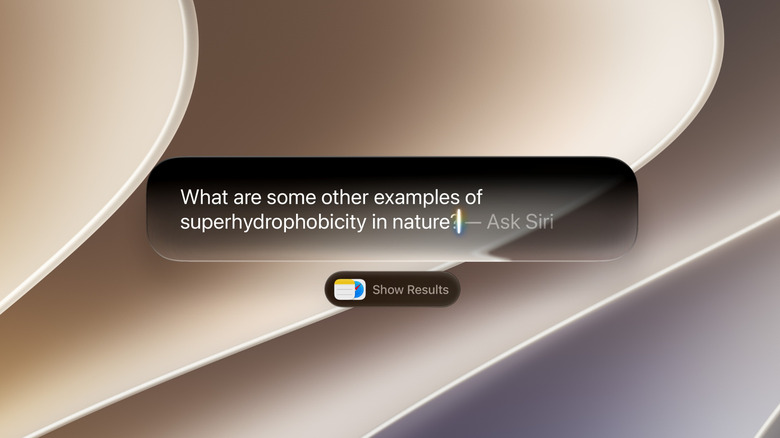
After you get an answer in the search window, you can drag down to expand it and see more of Siri's response. There's also an "Ask Siri" bar at the bottom to continue with follow-up questions. You can press the dual arrow icon in the top right of this floating panel (which you can resize and drag around to position over other apps), and that will take you to the Siri app.
Of course, one of the biggest differences for Siri is the new app, which is where your past conversations and queries are stored. Apple won't save every single one of your commands to Siri here — so you won't see entries for "set a timer for 5 minutes" or "what's the weather like today." The idea is that things that feel like one-off exchanges don't need to be kept, and Apple will be making the decisions behind the scenes as to what you might want to see again in the Siri app.
The layout here is familiar, with each conversation contained in a card that's assigned a title based on the topic of your chat. Where relevant, like in a query about the top PGA golfers in the world, the card also has a picture on its cover. On the demo devices that I saw, there were lots of cards with titles like "San Francisco Parks for Kids," "NYC Buildings over 1,000 feet" or "Dog Domestication Timeline." Above each title was a time or day, and the cards appeared to be sorted in reverse chronological order.
Finally, another change in the way you access Siri is in context menus. These are the menus that show up when you long-press something on an iPhone or two-finger click something on a Macbook. For now, you'll see a new Ask Siri option at the top of this menu in macOS, while the Ask Siri option is at the bottom of the context menu in iPadOS. It's something that will most likely change by the time the public beta arrives, or when Siri AI rolls out generally.
I'd also like to point out that Apple has added a few new ways to use Visual Intelligence on iPhones, iPads and Macs. You were always able to access Visual Intelligence by long-pressing the Camera Control button or the Action button if you had programmed it that way. But with Siri AI, the camera app itself will have a new Siri mode. You bring it up the same way you would switch from Photo to Video to Portrait modes — that is, by swiping through the options at the bottom of the viewfinder until you land on "Siri."
On Macs, there are two new keyboard shortcuts. One is Command-Shift-Space, which basically takes a look at your entire screen and suggests things you can do with it. One demo I saw had a person open up an attached schedule for a summer of activities, and after triggering the shortcut, a glowing outline appeared around the schedule and three tiny chips appeared at the bottom, offering you the option to "Ask Siri," run an "Image Search" or "Add to Calendar."
The other keyboard shortcut is Command-Shift-Six, which does basically the same as the other, but it defaults to a selection cursor so you can manually outline where on your screen you want Siri to look.
One last note on changes to Siri: gone is the multi-color glowing effect that appears around your screen or the pulsing orb that represents the assistant. In its place is a more grayscale, monochrome color scheme and somewhat metallic effect to the orb. I don't have a strong preference for either, but it's certainly a visual indication that this version of Siri is different from the one before.
How does Siri AI perform?
 Apple
Apple In the demos I saw, and in the rare instances where I tried to ask my own questions, the system was fairly responsive. Like most AI products, the responses can take longer to generate if your prompt was more complicated (or if it required sifting through more of your photos and messages). But by and large I didn't find myself waiting more than a second to see Siri AI reply.
I was inspired by demo questions about traveling to Hawaii and family-friendly hikes, and asked how to go from Portland, Maine to Acadia National Park without driving. (I grew up and live in cities and never took my driving tests.)
Siri wasted no time in telling me that the best way would be by bus, and informed me that the trip would take about four to six hours. As I scrolled down past a picture of the park, I saw details on what routes (with connections) I could consider, and whether those required advanced booking. Below that, Siri also said that flying is another option, but cautioned that it would be more expensive and still require a connection.
Siri AI actually took it a step further by telling me about how to get around the Acadia area without a car, telling me that it will be easy during peak season thanks to the free island shuttle.
As someone who's already researched this by doing hours of Googling, I found Siri's answers matched up to what I previously learned. Did I prefer having an AI assistant tell me everything versus poring over multiple websites to find out for myself? Call me old-fashioned, but I like going straight to the source for my information so I can verify the facts. Still, Siri AI did what Apple promised and seems to be a decent inspiration point, at least.
How to get Siri AI
 Apple
Apple For now, Siri AI is not publicly available, but enthusiasts can already sign up to be on the waitlist. After you install the iOS 27 beta, you can register your desire to check out Siri AI in the Apple Intelligence portion of the Settings app.
Those who don't want to mess around with potentially buggy software can wait until the fall, when Apple typically releases the latest versions of its various operating systems to the public. According to Apple, "Siri AI will be available as a beta later this year for users with a supported device set to English, and Apple will quickly expand support for more languages."
It's worth noting that if you're in the EU, you'll only be able to access Siri AI on Macs, Vision Pros and Apple Watches if your device is set to English (or a supported language when more are available). For iPhones and iPads, the company said it "is working hard to find a path forward that preserves its users' privacy and security."
Meanwhile, those in China will not be able to use Siri AI and other new Apple Intelligence features, as Apple "works through regulatory requirements."
When the public version of Siri Ai does eventually roll out (which might not even be within this year), it's likely you'll receive a notification to update your device and opt in, similar to how Apple Intelligence rolled out.