One identifies your network, the other identifies the devices using your network.
By Vincent Arogya Nov. 22, 2026 7:00 pm EST Calleaume/Getty Images Add Engadget on Google: Preferred Source Google Discover
Each time you stream a video, read an article or download files online, your network interface and a server communicate with each other using unique numerical labels called IP addresses. When you acquire an internet connection, your ISP assigns a unique public IP address to your router's WAN port. The public IP address is what allows you to access the internet and the internet to find you.
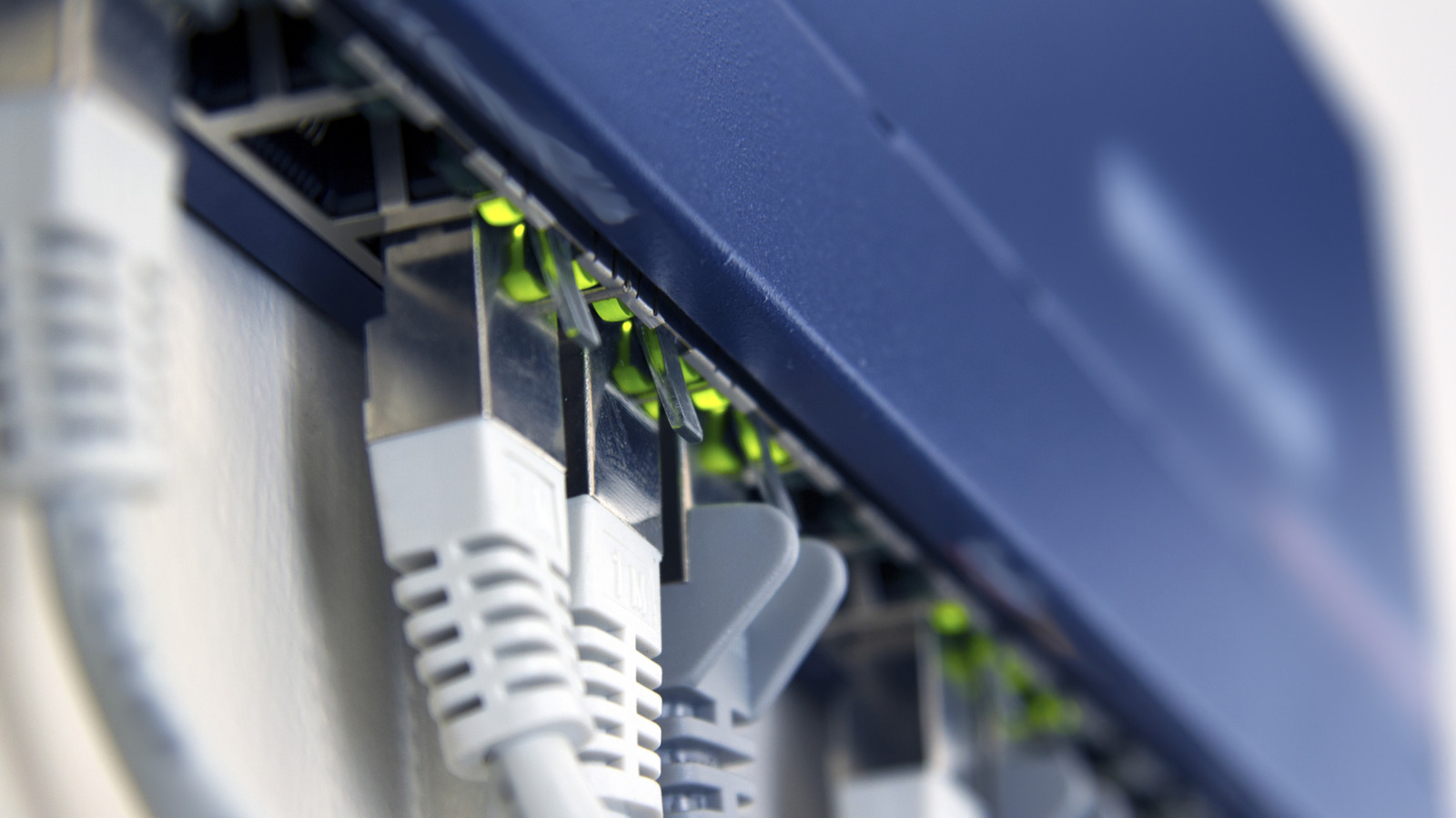
All the various gadgets connected to your home home network like phones, computers and smart home hardware connect to your router via private IP addresses rather than the public address assigned to your router. Devices on private IP addresses can communicate with each other but cannot directly access the internet; they must rely on a router. Similarly, devices outside the private network cannot communicate with those using a private IP address. This is why your neighbor cannot send a print request to your home printer.
When attempting to understand public vs. private IP address, you can think of the former as your house address and the latter as apartment numbers. Each device connected to your router is assigned a unique private IP address. Knowing how to find the IP addresses of your connected devices can help streamline troubleshooting efforts in case your home network starts acting up.
How to find your public and private IP addresses
The quickest way to find your public IP address is via an online IP checker tool like WhatIsMyIPAddress and ifconfig.me. You can use any device connected to your router for this process as long as it's capable of accessing a web browser. To identify private IP addresses, you can use your router's control panel to view the list of devices connected to your home network, including their private IP addresses. However, this method may not be sufficient to identify which IP address corresponds to what device as not all device manufacturers include hostnames.
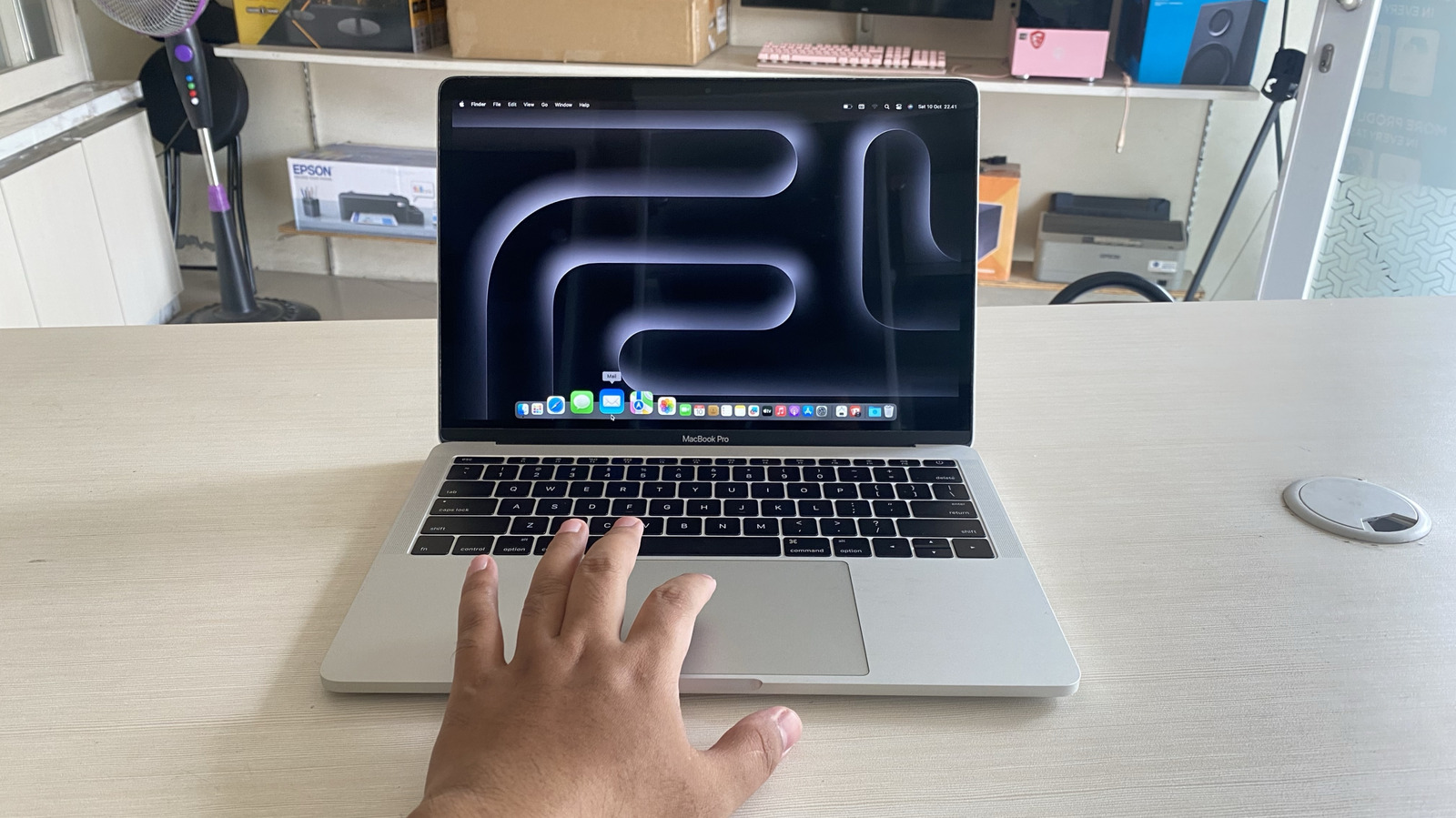
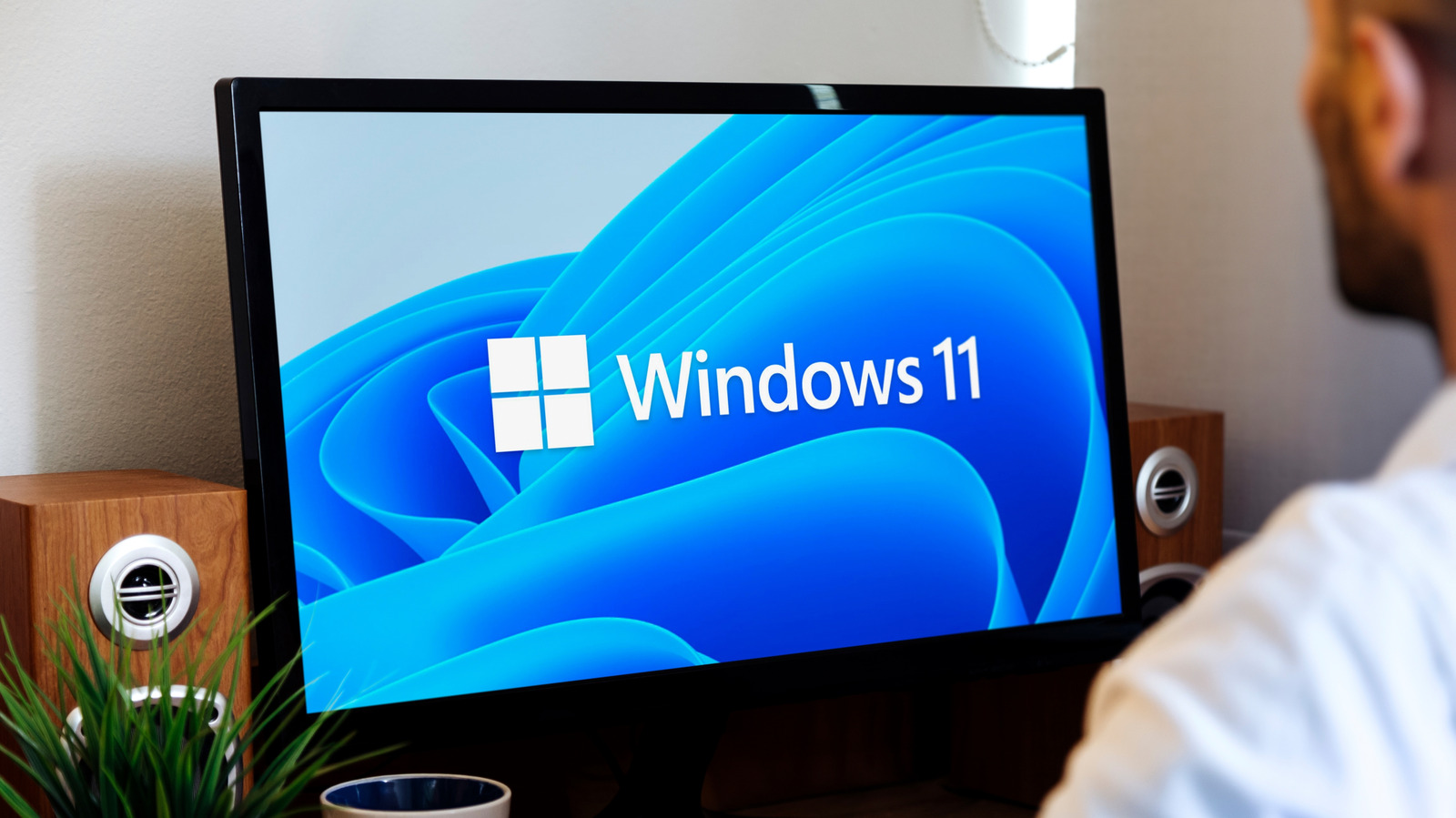
In case a device's hostname doesn't show up in your router's control panel, you're not entirely out of options. For instance, on a Windows computer, you can run the "ipconfig" command to find the IPv4 address, which is the computer's private IP address. On macOS, running the "ipconfig getifaddr en0" (Wi-Fi) or "ipconfig getifaddr en1" (ethernet) commands will pull up the computer's private IP address.
On an iPhone: Settings > Wi-Fi > tap the "i" button next to Wi-Fi network you're connected to > scroll down to find the IPv4 section containing your iPhone's private IP address. Similarly, on an Android device: Settings > Network and internet > Internet > tap the network you're connected to > scroll down to find your device's private IP address.
How public and private IP addresses affect home networks
Your public IP address identifies your network on the internet while your private IP addresses identify devices connected to your home network. Although each device in your home network has its own private IP address, your router allows them to share a single public IP address when accessing the internet. This is made possible via Network Address Translation (NAT), which is a network routing mechanism that enables the router to manage communication between devices in your private network and the internet.
While home networks are usually assigned a private IP address that follows the 192.168.X.X IP DNS range, the Internet Assigned Numbers Authority (IANA) has also reserved the 10.X.X.X and 172.16.X.X private IP ranges for large and medium organizations, respectively.
Learning how to recognize public and private IP addresses can help you identify devices in your home network and troubleshoot connectivity issues effectively. For instance, if a device in your network has an unusual 169.254.X.X IP address, also known as Automatic Private IP, instead of the familiar 192.168.X.X IP range, you can conclude that the device did not receive the IP address from the router. In case devices in your home network do have valid private IP addresses but no access to the internet, you can then focus your investigation on the most probable cause — your router, followed by the ISP — rather than troubleshooting everything in the network chain.