 Julian Monrabal/Shutterstock Add Engadget on Google: Preferred Source Google Discover
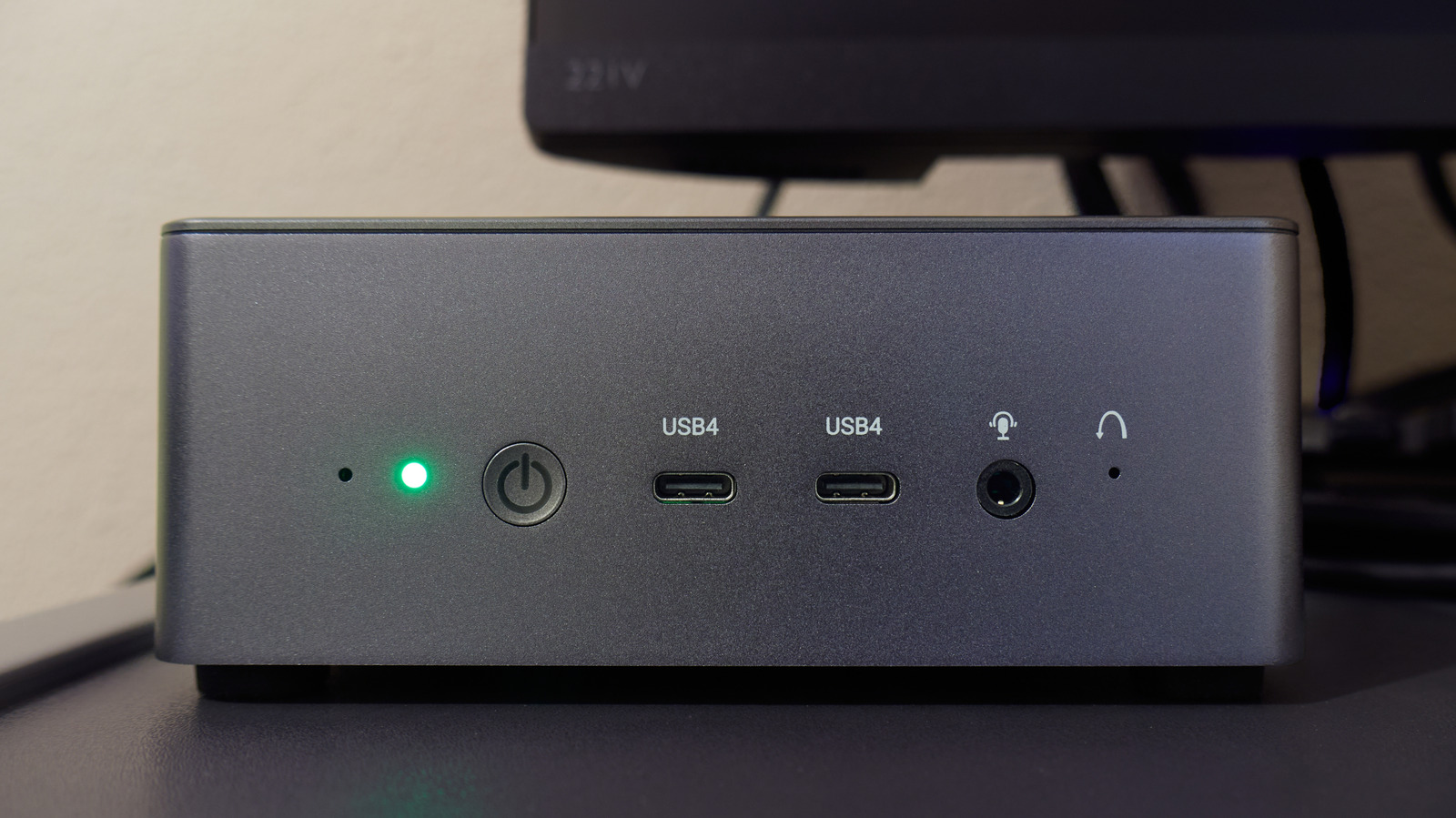
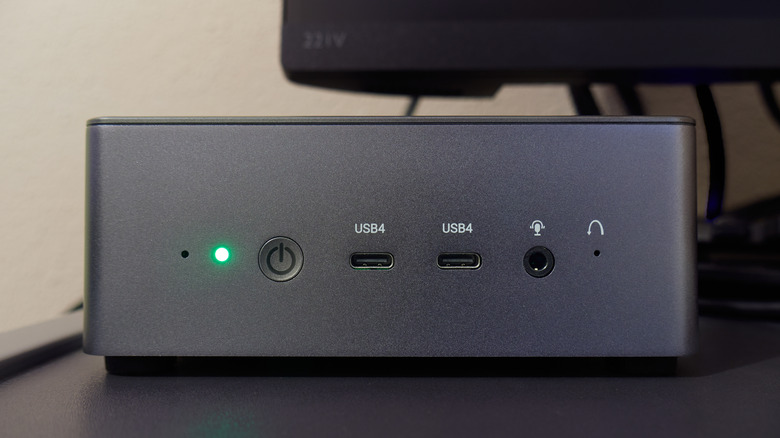
Building or upgrading a PC isn't as thrilling as it once was, especially with the AI takeover. If RAMageddon has left a bitter taste in your mouth, an old mini PC you have lying around might be worth putting to use. Sure, it won't get magically faster, but replacing it has certainly gotten expensive.
The cool part is that this little box can become your retro gaming console, host your media library, or even serve as a dedicated AI coding workstation. But a lot of what you can do with it does depend on what's under the hood. Some projects require only free software, while others may require some hardware and patience. So here are six ways to get one working again.
Turn it into a retro gaming console
 paul champagne/Shutterstock
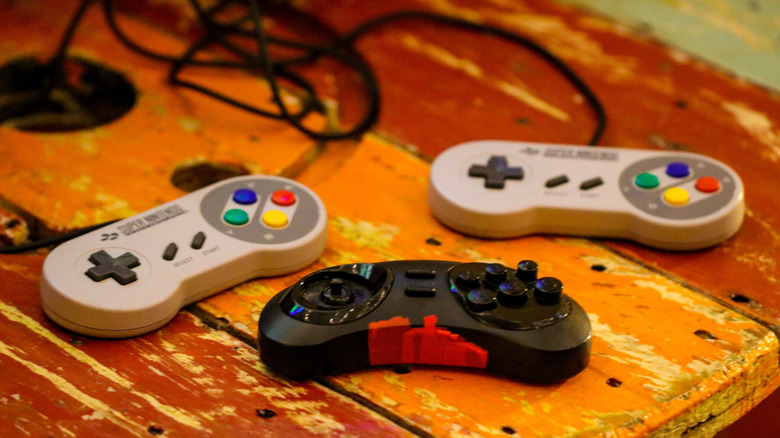
While your old mini PC may not handle the latest AAA games, it could make a great retro gaming console. Batocera is a free, Linux-based operating system you can use to turn it into a dedicated machine for playing Nintendo, Sega, and PlayStation classics.
It is fairly easy to get started. Download Batocera's PC image, flash it onto a USB stick, and boot your mini PC from it. This lets you test the operating system without replacing Windows, though you may need to disable Secure Boot or enroll Batocera's signing key to get it running. If Windows uses BitLocker, make sure you have your recovery key before changing Secure Boot settings.
Once it's up and running, you can connect the mini PC to your TV via HDMI, pair a compatible controller, and add your legally acquired games. Batocera arranges everything in a console-style interface, so you can easily navigate your library without a keyboard.
Performance will vary depending on hardware. Many older mini PCs can handle 8-bit and 16-bit games, but the PlayStation 2 and GameCube may be a bit of a challenge. Another way to play compatible PC games on your TV is Steam's Big Picture Mode, if your machine is powerful enough. But don't count on a controller to make up for an outdated processor and integrated graphics.
Build a media center and personal file server
 Kitreel/Shutterstock
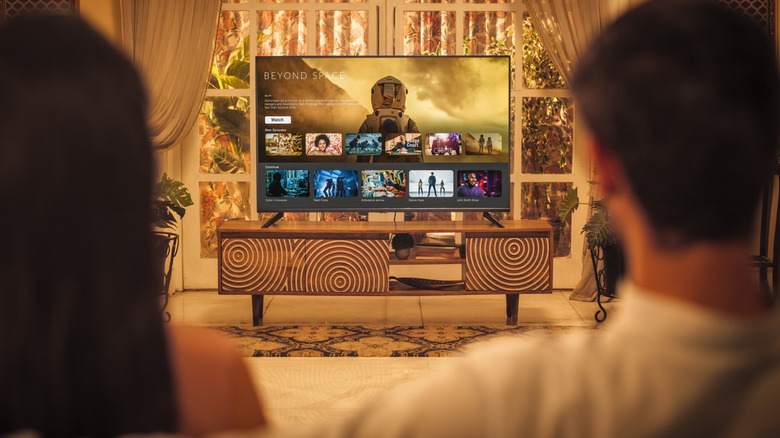
An old mini PC can also be a dedicated home for your movie and music collection. Plug it into your TV, install Kodi, and you have a media center to browse and play stored content locally. If you want to view your library on several devices, Plex and Jellyfin can stream your files to compatible TVs, phones, and tablets over your home network.
However, you should consider hardware restrictions first. A video played in its native format typically uses less processing power than one converted on the fly for an incompatible device. That process, known as transcoding, can strain older processors, especially with 4K content.
Plex also requires a Plex Pass or Remote Watch Pass for remote personal video streaming on affected apps, unless the server owner already has Plex Pass. Local streaming remains free. Jellyfin doesn't charge for remote streaming, but you have to set it up yourself.
You can also turn the mini PC into a network-attached storage (NAS) device. Attach an external SSD or hard drive and share files on the home network with software like OpenMediaVault. It's a practical solution for storing family photos, documents, and backups without relying on paid cloud storage.
But you still have to consider drives, electricity, and occasional maintenance. With storage prices off the charts, buying additional drives could be costly. Plus, while a NAS can hold backups, it shouldn't be the only place you keep anything important. One dusty old hard drive with all your family photos isn't exactly a good backup plan.
Make your own touchscreen jukebox
 Jukiora
If you're at a party and everyone wants to add a song to the queue, passing your phone around can get tedious. An old mini PC can handle it. Pair it with a touchscreen and speakers, and you've got the makings of a digital jukebox for your living room or home bar.
Apps like Jukiora can turn a Windows mini PC into a music station, with album art and a touchscreen interface for browsing songs. Alternatively, TouchGroove also lets guests queue songs from their phones via a QR code. This means everyone can add to the playlist without passing the phone around.
You'll need your own music library to play your own songs, since neither app includes a music collection. Both Jukiora and TouchGroove offer seven-day free trials, followed by a one-time purchase. If you don't already have a touchscreen around, it may also increase the price. It's still a pretty fun way to put a mini PC to use that may otherwise be sitting in retirement collecting dust.
Turn it into a home security recorder
 Kamonwan Wankaew/Shutterstock
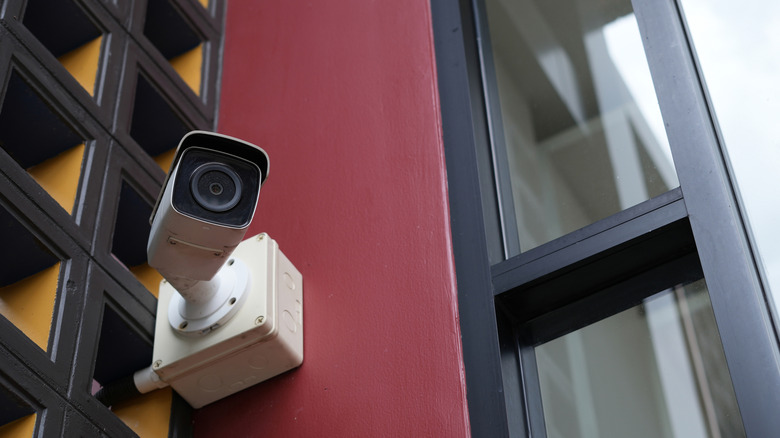
If you already have security cameras in your home, you can use your old mini PC to record the footage. Try Frigate, an open-source network video recorder (NVR) that works with compatible IP cameras to store footage locally instead of relying on a manufacturer's cloud recording service.
The program can also detect objects like people and vehicles in camera footage using AI. So finding the footage of someone walking up to your front door or a car pulling into your driveway is much easier than sifting through hours of footage. You can even set how long recordings are kept, depending on available storage space.
The only catch here is that not every hardware setup will play ball. Frigate requires processors that support AVX and AVX2 instructions, ruling out many older Celeron, Pentium, and Atom chips. With multiple cameras, hardware-accelerated video decoding and an appropriate object detector can also make a big difference. You'll also need ample storage space and working knowledge of Docker to get it up and running.
Give it a second career as an AI workstation
 Ollama
With AI coding assistants so popular right now, your aging mini PC could have another role to play. Although powerful hardware can make a massive difference when running AI models, you can still experiment on some older but capable hardware.
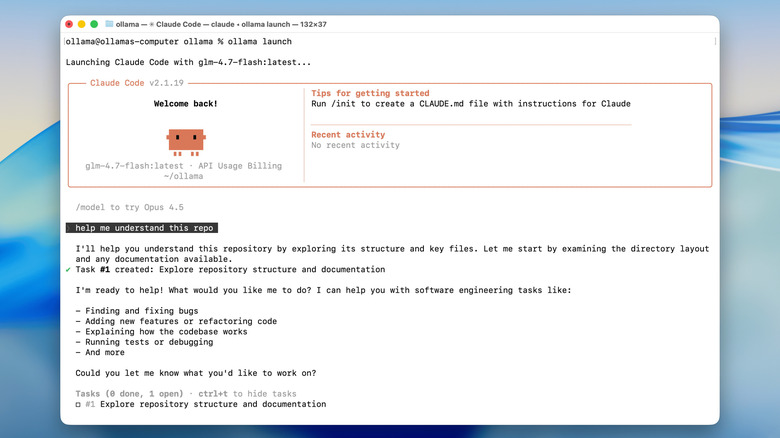
One easy way to get started is Ollama. You can download smaller language models and run them directly on your computer, letting you ask questions, summarize text, or even play around with a chatbot without sending every prompt to the web. After installing it, you can use local models without shelling out a single cent. Obviously, you can't expect an old processor with limited RAM to perform as well as a modern AI workstation.
Anthropic's coding assistant, Claude Code, can analyze project files, modify code, and run commands, with cloud-based models handling the heavy lifting of AI processing. It comes with Claude Pro, priced at $20 per month in the US (billed monthly), or you can pay for it separately based on API usage.
Claude Code can also connect to locally hosted models via Ollama, though running a good coding model on older hardware is a different story. According to Ollama, Meta's Llama 3.2 1B model is a 1.3 GB download.